Real-time collaboration that feels like being in the same room. Live cursors, instant editing, and communication built right into your workspace.
See your team in action.
Live cursors.
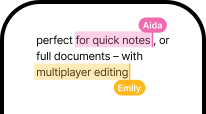
Watch teammates edit in real time with colorful cursors showing who is doing what. See changes appear as they happen, without refreshing or waiting for saves.
Follow mode.
See exactly what a teammate is looking at. Perfect for guided walkthroughs, presentations, and explaining complex content without sharing a screen.
Presence indicators.
Know who is currently viewing or working on any file or space. See at a glance which team members are active and where they are in your workspace.
Communication built right in.
@mentions.
Tag teammates to bring their attention exactly where it is needed. Mention someone on a specific file, note, or section and they will be notified immediately.
Comments on anything.
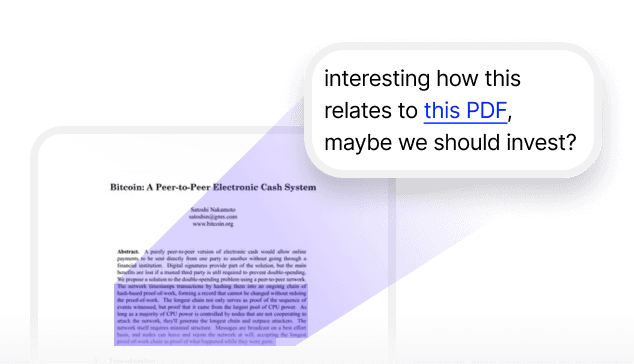
Start conversations on any file, note, or section with threaded discussions. Comments stay attached to the content they refer to, so context is never lost.
Integrated chat.
Discuss projects without switching to another messaging app. Chat lives inside any document, folder, or workspace so conversations happen alongside the work.
Smart notifications.
Stay informed about what matters with customizable alerts for mentions, comments, and changes. Control what you are notified about so you are never overwhelmed.
Complete control and transparency.
Activity history.
See who changed what and when with a detailed log of all modifications. Every edit, comment, and action is recorded so you always have a clear trail of how content evolved.
Granular permissions.
Set precise access levels from view-only to full editing rights. Control permissions at both the space and individual file level, choosing between viewer, commenter, editor, and admin roles.
Secure sharing.
Share with confidence, knowing exactly who has access to your content. Add password protection for sensitive materials and use link analytics to track engagement with shared content.
Collaboration that goes beyond document editing.
Most collaboration tools focus on one thing: editing a document together. Fabric gives you that, but it also extends collaboration across every part of your workspace. You can co-edit notes and documents with multiplayer editing. You can work together on a canvas with real-time cursors, drawing, and embedded content. You can share kanban boards so your team can visually track project progress. And you can leave annotations and comments on any file type, not just text documents.
This means collaboration in Fabric is not limited to writing together. Designers can review visual assets and leave feedback on specific parts of an image. Researchers can annotate shared papers and discuss findings in threaded comments. Product managers can update project boards while teammates follow along in real time. Whatever the work looks like, collaboration happens on top of it rather than in a separate tool.
Built for remote and distributed teams.
When your team is spread across offices, time zones, or continents, the details of collaboration matter. Live cursors and presence indicators give you the ambient awareness of who is working on what, which remote teams often lack. Follow mode lets you walk a teammate through content as if you were pointing at the same screen. Threaded comments and @mentions keep discussions attached to the content they are about, so conversations do not get lost in a separate chat app.
For remote teams, agencies with distributed staff, and startups with team members in different cities, these features replace the informal coordination that happens naturally in a shared office. You can set up a collaborative workspace and onboard new collaborators with guides that walk them through how your team uses Fabric.
Collaboration with external partners.
Not all collaboration happens within your team. Freelancers working with clients, agencies managing external stakeholders, and consultancies sharing deliverables all need ways to collaborate with people outside their organization. Fabric lets you share files and folders with external collaborators, control what they can see and do with granular permissions, and keep client communication attached to the work itself. You can learn more about best practices for external collaboration in the working with clients guide.
For situations where you want to share content without granting editing access, view-only sharing with password protection keeps materials secure. Add link analytics to understand when and how external stakeholders are engaging with what you have shared.
One workspace for communication and content.
A common frustration with team tools is that conversations about work happen in one place (Slack, email) while the work itself lives somewhere else (Google Docs, Dropbox). Important decisions get buried in chat threads, and feedback gets disconnected from the file it refers to. Fabric brings communication and content together. Comments, @mentions, and chat are all built into the same workspace where your files, notes, and projects live. When someone leaves feedback, it is attached to the exact piece of content they are talking about. When a decision is made, it is visible alongside the work it affects.
This is especially valuable for creative teams running review and approval workflows, teams maintaining a team wiki, and anyone coordinating group projects where keeping communication close to the content reduces confusion and speeds up decisions.
Use cases
Remote teams
Stay connected despite physical distance with live cursors, presence indicators, and communication tools built into your shared workspace. Replace the coordination lost when teams are not in the same room.
Project coordination
Keep everyone aligned with comments, @mentions, and activity history directly on shared project documentation. No more chasing updates across email and chat. See how Fabric supports project docs.
Creative partnerships
Brainstorm and refine ideas together on canvas, review design work with inline annotations, and provide feedback in real time. See how Fabric supports brainstorming.
Client collaboration
Share progress and gather input in a controlled environment. Set permissions so clients can view and comment without modifying your files. See how Fabric supports client work.
Onboarding
Bring new team members up to speed with shared spaces, documented processes, and guided walkthroughs using follow mode. See how Fabric supports onboarding.
Perfect for
Creative teams
Collaborate on design assets, content, and campaigns with real-time editing, visual feedback tools, and shared kanban boards for tracking project stages. Learn more about Fabric for creative teams.
Agencies
Manage internal collaboration and client-facing work in the same workspace. Control who sees what with granular permissions and share deliverables securely. Learn more about Fabric for agencies.
Research teams
Annotate papers together, discuss findings in threaded comments, and build shared knowledge bases that the whole team can contribute to. Learn more about Fabric for research teams.
Startups
Move fast with real-time collaboration across notes, canvas, and shared folders. Keep communication close to the work as your team grows. Learn more about Fabric for startups.
Works seamlessly with other features.
Notes and docs
Write and edit documents together with multiplayer editing. Changes appear in real time for all collaborators.
Canvas
Collaborate visually on canvas with real-time cursors, drawing tools, and shared embeds. Work together on brainstorms, planning, and visual organization.
Annotations
Leave comments and highlights on any file type. Collaborators can reply to annotations and discuss specific parts of the content.
AI assistant
Get insights and suggestions from the AI assistant that the whole team can see and discuss. AI-generated answers and summaries appear in the shared context.
FAQ
How many people can collaborate at the same time?
Standard plans support up to 25 simultaneous collaborators on any document or space, with higher limits available for larger teams. The experience remains smooth and responsive even with many people working at once. See team pricing for details.
Can I collaborate with people who do not have Fabric accounts?
Yes. You can create shareable links that allow anyone to view or comment without signing up. For regular collaboration, team members can create free accounts.
How do permissions work?
You can set permissions at both the space and individual file level. Choose between viewer (can only see), commenter (can see and leave comments), editor (can make changes), and admin (can manage permissions) roles. Learn more in the sharing guide.
Does collaboration work offline?
Full real-time collaboration requires an internet connection. You can still work on shared documents offline, and any changes you make will sync and become visible to others when you reconnect. Fabric's sync features handle the merging automatically.
Can I see who changed what?
Yes. Activity history shows a detailed log of all modifications, including who made each change and when. This gives you full transparency over how content evolves.
Can I collaborate on files other than text documents?
Yes. Collaboration in Fabric works across notes and docs, canvas, kanban boards, and any file type that supports annotations. You can leave comments and discuss any type of content in your workspace.
How do I set up a collaborative workspace?
You can learn how to structure your workspace for team use in the setting up a collaborative workspace guide. For adding new people, see onboarding collaborators.
Can I collaborate with clients or external partners?
Yes. You can share files and folders with people outside your team and control their access level with granular permissions. See the working with clients guide for best practices on external collaboration.
Is there a chat feature built in?
Yes. Integrated chat is available inside any document, folder, or workspace. You can discuss projects without switching to a separate messaging tool. @mentions and smart notifications keep conversations organized.
What is follow mode?
Follow mode lets you see exactly what a teammate is looking at in real time. It is useful for guided walkthroughs, presentations, and explaining complex content without needing to share your screen.