

Get the Chrome extension
Get Fabric in your browser
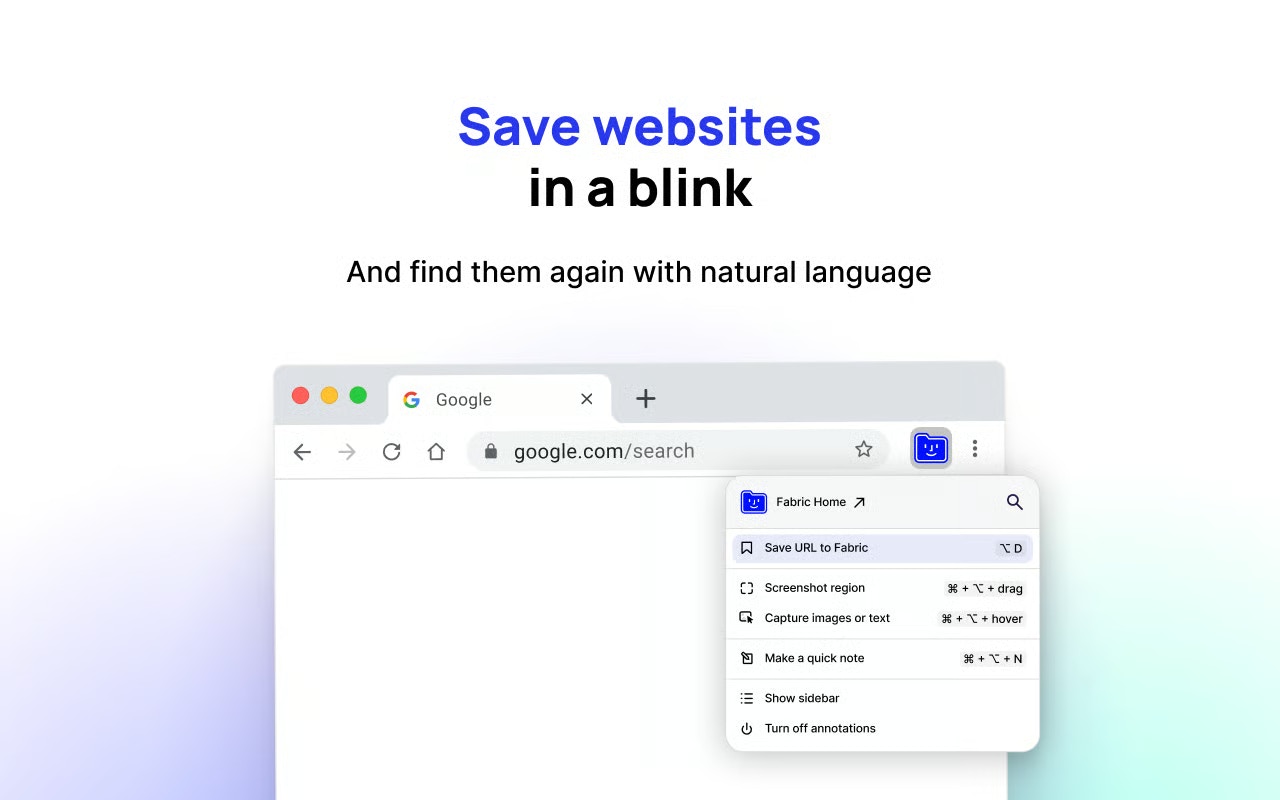
How to bookmark a website:Simply press ⌥+D (or Alt+D on Windows)orClick the “Save URL to Fabric” option in the extension drop downorRight click anywhere in the page and choose “Add page to Fabric”
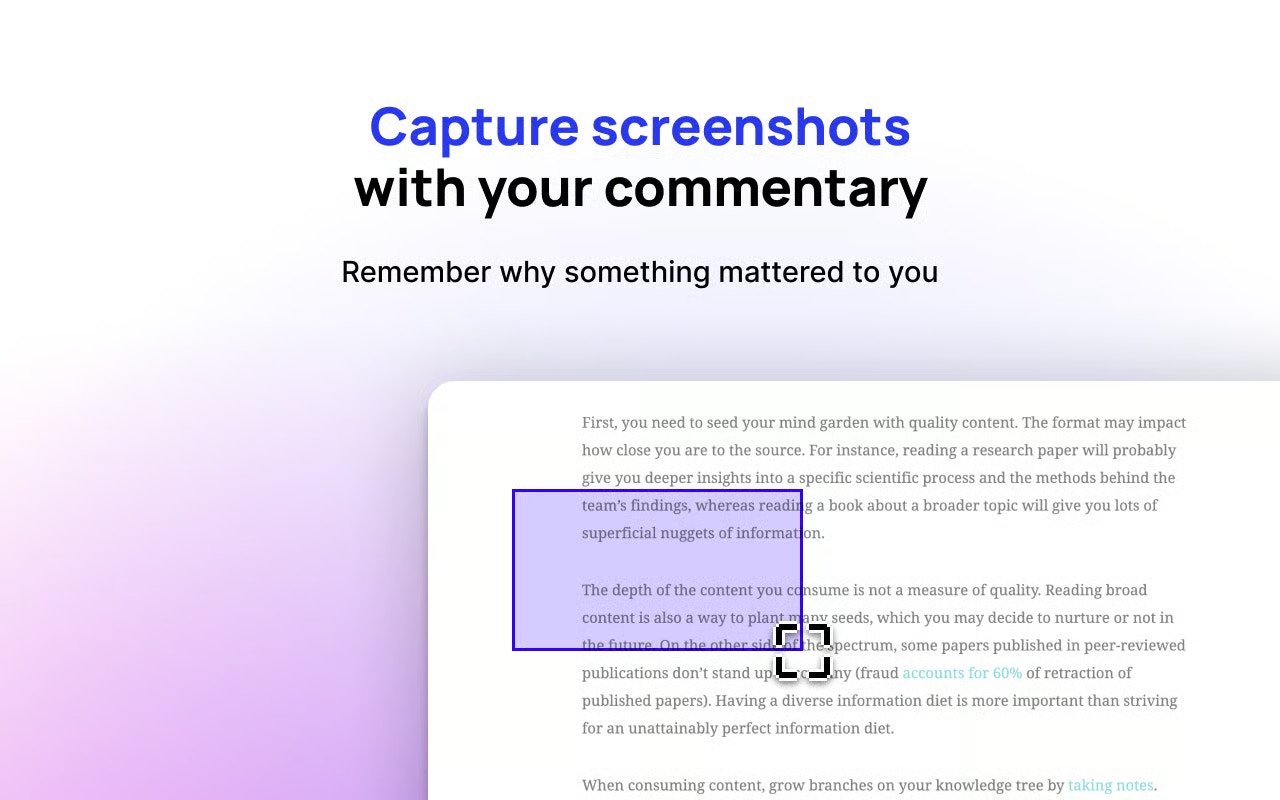
Screenshot anything on the web:Simply hold
⌘+⌥ (or Ctrl+alt on Windows) and drag.Release to capture.orClick the “Screenshot region” option in the extension drop downScreenshot a whole website:Simply hold
The extension will auto-scroll the page and create a screenshot for you.Note: Important to not interact with the browser whilst this is happening.
Opt+⌥+D (or Shit+alt+D on Windows).orClick the “Screenshot full page” option in the extension drop down.The extension will auto-scroll the page and create a screenshot for you.Note: Important to not interact with the browser whilst this is happening.
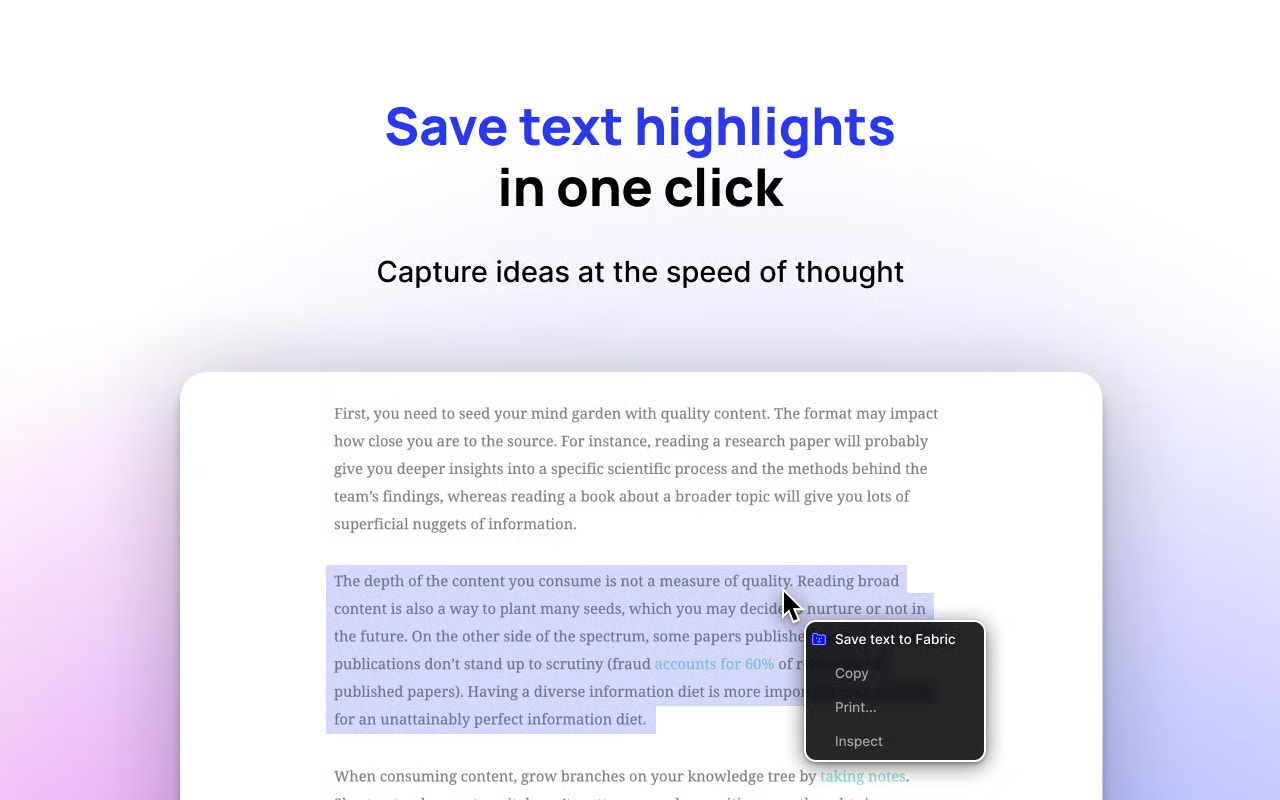
How to capture text content:
- Highlight some text and
right click. - Select
Add highlight to Fabricoption in context menu
⌘+⌥ (or Ctrl+alt on Windows) and hover the block of text you want to capture.Click to capture.
How to capture image content:
Right click on any image and select Add image commentorHold ⌘+⌥ (or Ctrl+alt on Windows) and hover the image you want to capture.Click to capture.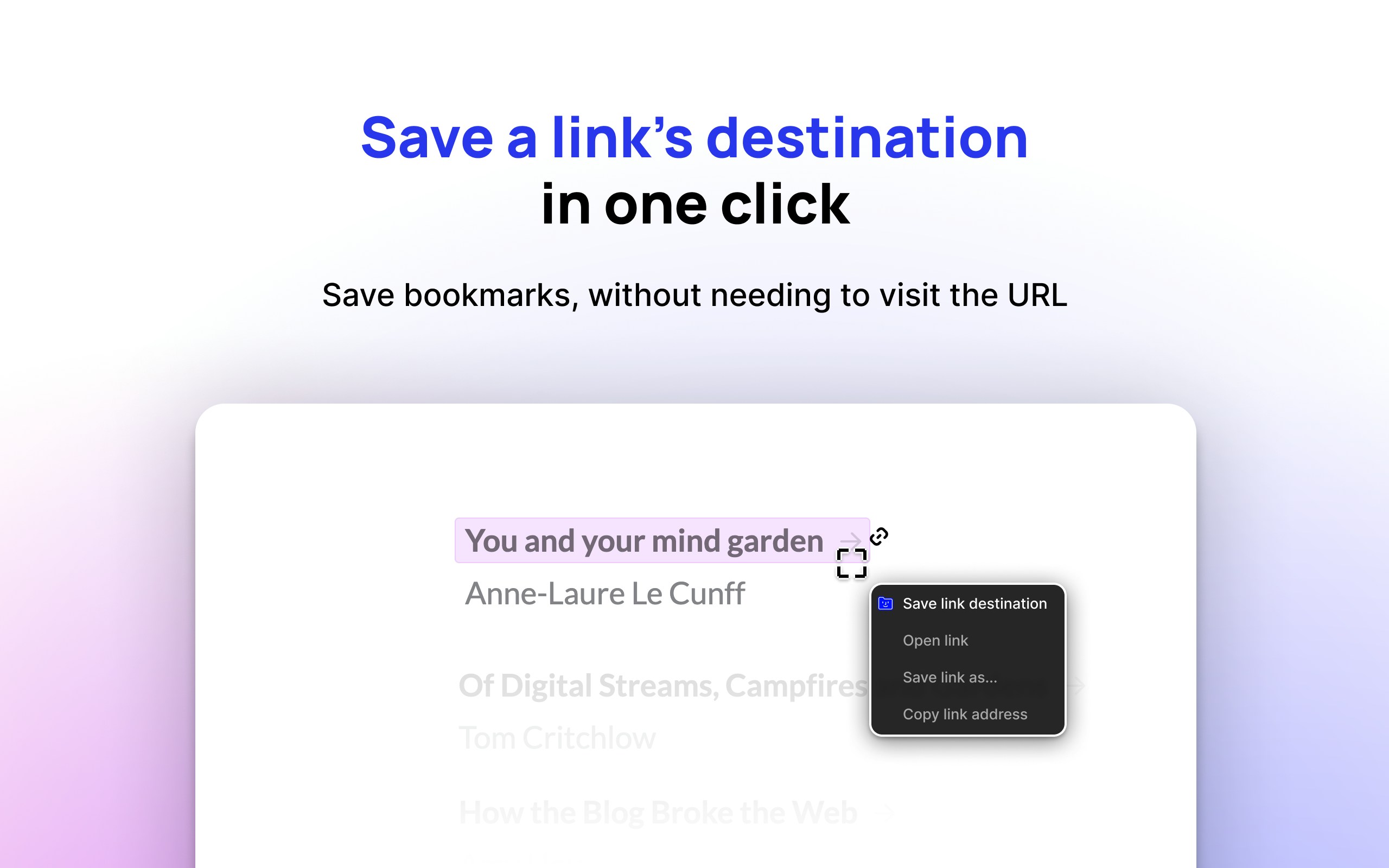
How to capture a link:
Right clickany link.- Select
Save link destination to Fabricoption in context menu
⌘+⌥ (or Ctrl+alt on Windows) and hover a link. The capture box should turn pink to indicate that it’s a valid link.Click to capture.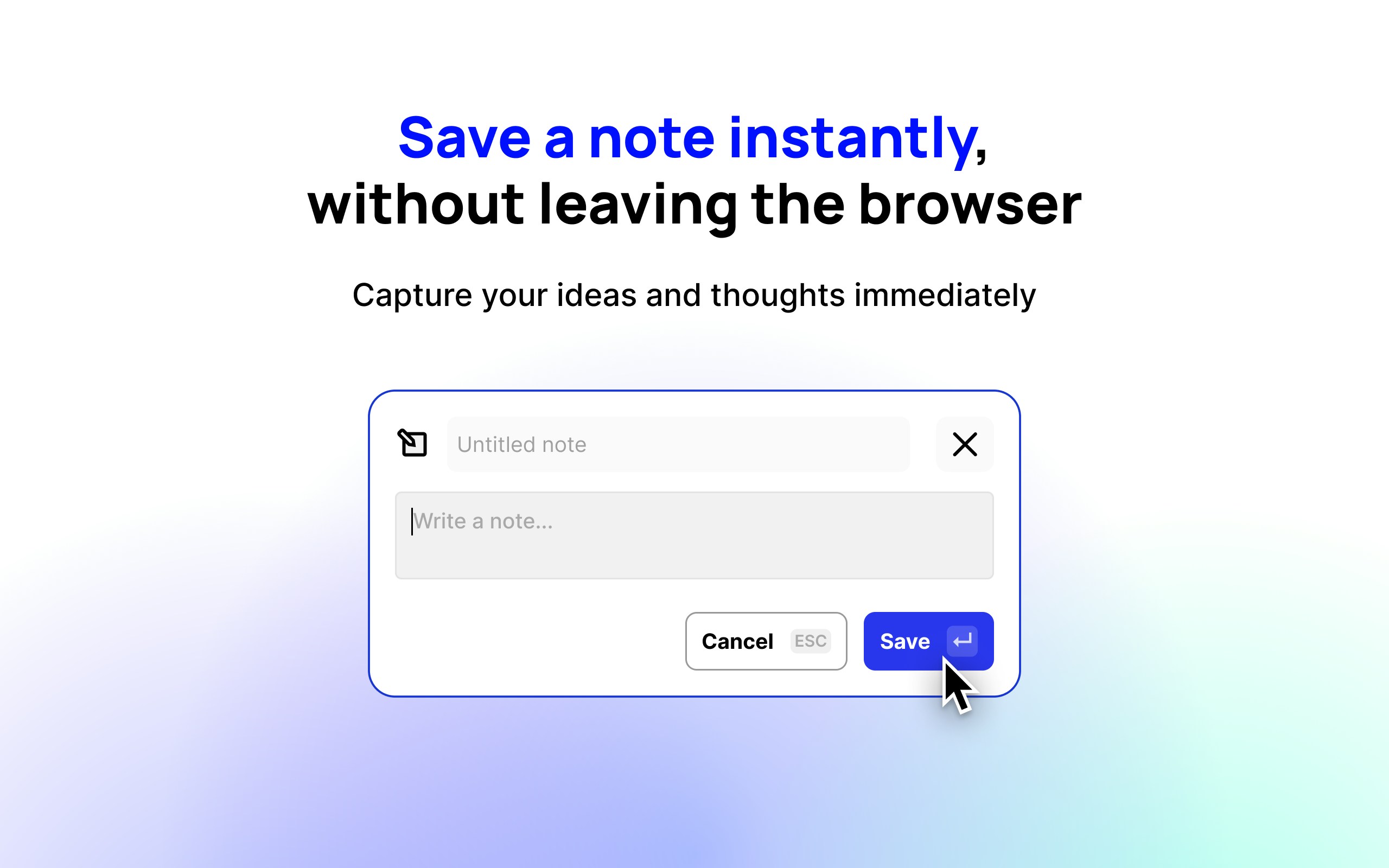
How to make a quick note:Simply press
⌘+⌥+N (or Ctrl+alt+N on Windows)