> ## Documentation Index
> Fetch the complete documentation index at: https://fabric.so/llms.txt
> Use this file to discover all available pages before exploring further.
# Tasks
> Your tasks, connected to everything.
 ## What are tasks?
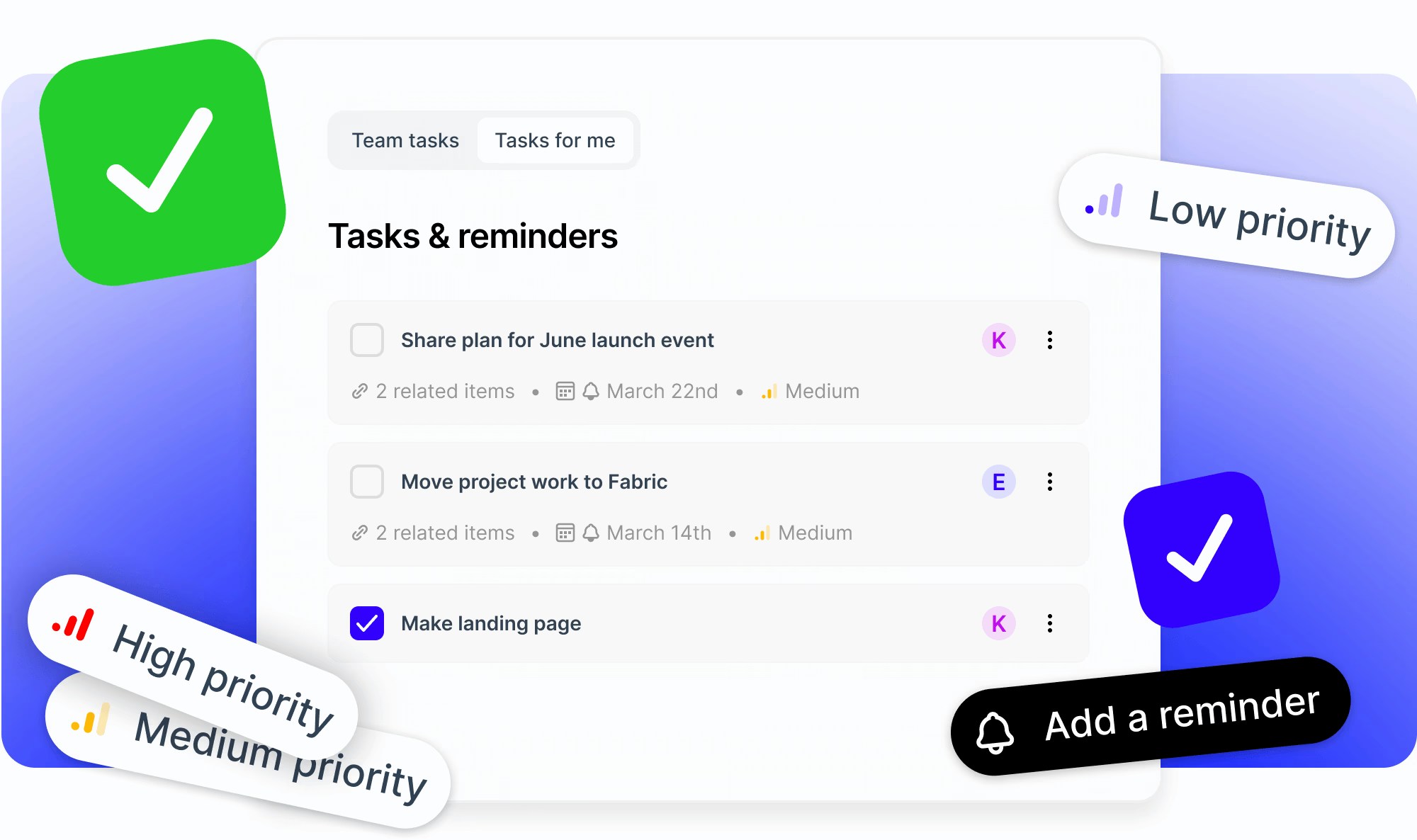
* Fabric lets you create tasks in a dedicated view inside the Fabric app.
* You can connect relevant files and folders, to maintain important context.
* You can also set due dates, reminders, priorities, assignees and more.
***
## How to make a task
* Simply go to the dedicated Tasks view, and click `Create task`.
* You can then write a title and click (or press `Enter`) to submit it.
* Task created! Just click the checkbox to mark it complete.
***
## Set a due date and reminder
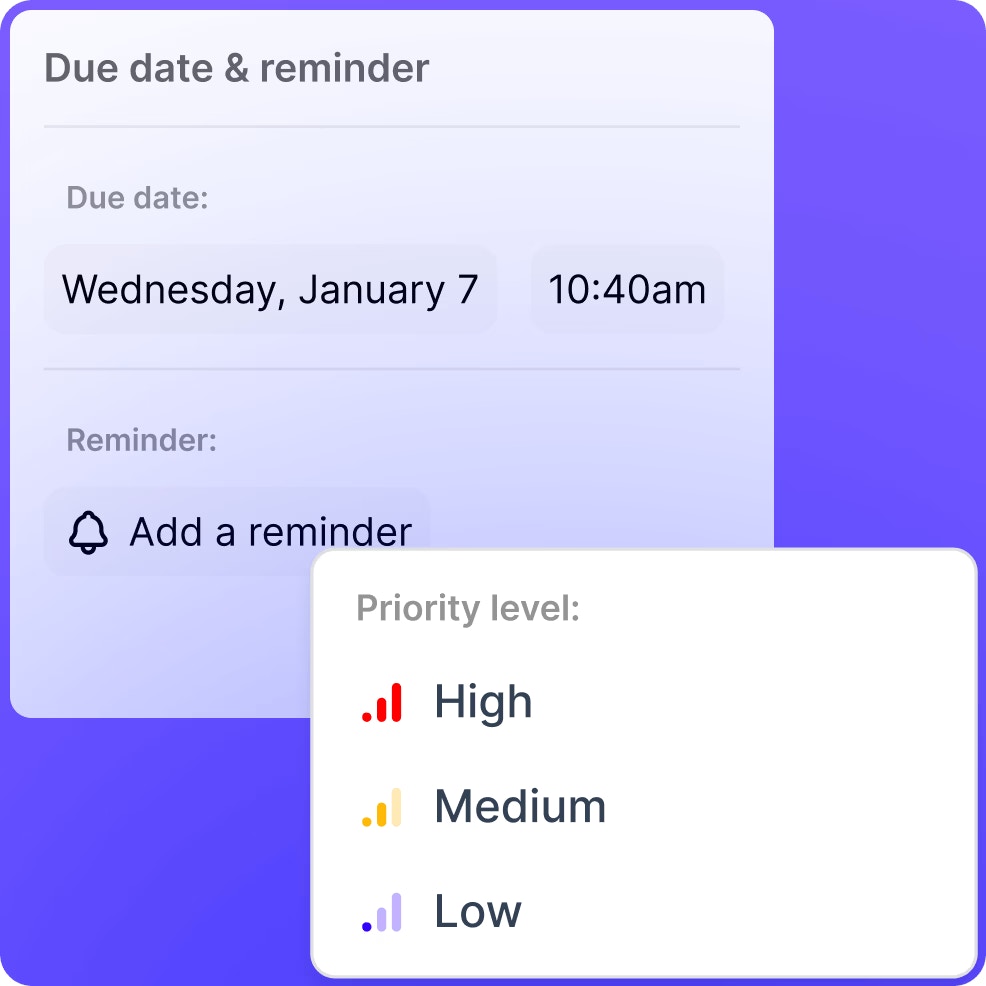
* For each task, you can set a due date and time.
* You can also set a reminder, which is relative to the due date (for example, 10 minutes before).
* Reminders can be delivered to you via your account's email address, or in-app notification.
## What are tasks?
* Fabric lets you create tasks in a dedicated view inside the Fabric app.
* You can connect relevant files and folders, to maintain important context.
* You can also set due dates, reminders, priorities, assignees and more.
***
## How to make a task
* Simply go to the dedicated Tasks view, and click `Create task`.
* You can then write a title and click (or press `Enter`) to submit it.
* Task created! Just click the checkbox to mark it complete.
***
## Set a due date and reminder
* For each task, you can set a due date and time.
* You can also set a reminder, which is relative to the due date (for example, 10 minutes before).
* Reminders can be delivered to you via your account's email address, or in-app notification.
 ***
## Add related item(s)
* You can attach files, folders and spaces from within your Fabric workspace to a task by clicking `Add related items`.
* You can pick from some recent files and spaces, or search for something specific.
* Attaching items to a task makes it easier to hop to any related content, helping you group content with the task at hand.
***
## Add related item(s)
* You can attach files, folders and spaces from within your Fabric workspace to a task by clicking `Add related items`.
* You can pick from some recent files and spaces, or search for something specific.
* Attaching items to a task makes it easier to hop to any related content, helping you group content with the task at hand.
 ***
## Set an assignee (team workspaces only)
* In team workspaces, you can assign task ownership to anyone else in the workspace.
* They'll become the recipient for any reminders, and will see the task if they click `My tasks`.
***
## Set an assignee (team workspaces only)
* In team workspaces, you can assign task ownership to anyone else in the workspace.
* They'll become the recipient for any reminders, and will see the task if they click `My tasks`.
 ***
## Set priority level
* You can set the priority level of a task, with the options of `High`, `Medium`, and `Low`.
* With a priority level set, the task will show when the task screen is filtered by that priority.
***
## Set priority level
* You can set the priority level of a task, with the options of `High`, `Medium`, and `Low`.
* With a priority level set, the task will show when the task screen is filtered by that priority.
 ***
## Filtering and sorting tasks
You can filter tasks by:
* Status (whether they are marked done or not).
* Priority level (low, medium or high).
* Whether they are hidden or not.
When a filter is active, the filter icon in the top will be strongly contrasted and have a badge showing the number of filters applied.
You can also sort tasks in ascending or descending order by:
* Created date
* Due date
* Priority
* Title
* Modified date
***
## Filtering and sorting tasks
You can filter tasks by:
* Status (whether they are marked done or not).
* Priority level (low, medium or high).
* Whether they are hidden or not.
When a filter is active, the filter icon in the top will be strongly contrasted and have a badge showing the number of filters applied.
You can also sort tasks in ascending or descending order by:
* Created date
* Due date
* Priority
* Title
* Modified date