> ## Documentation Index
> Fetch the complete documentation index at: https://fabric.so/llms.txt
> Use this file to discover all available pages before exploring further.
# Notes & docs
> Your research, drafts, and writing all in one place.
.avif?fit=max&auto=format&n=7jRp3Qwzy0kFFSpt&q=85&s=a23e11218fd608b0abe9155d1d639498) ## About Fabric notes
* Fabric comes with a world-class text editor and document authoring tool.
* Designed for minimalism, speed, but with all the features you could want.
* Write in the same place that your research, ideas and files are.
***
## Editor features:
* Real-time multiplayer editing
* Link to any content in Fabric
* Embed images, files and other notes into a document
* Toggle lists
* Outlining tools
* Tables
* Code blocks, with syntax highlighting for over 40 languages
* Highlighting, commenting, @mentions
* AI document editing
* Publishing
* Text search
***
## How do I use it?
* Highlight any text to see the formatting toolbar (highlight, format text, change to a different block type e.g. code block, image, title etc.).
* Press `/` or click the `+` symbol to see the menu to add a new block.
* Grab the block to drag the current block or down.
* Click the block to see options to transform the current block into a different type.
***
## Link between your notes
* Tap `[[` to see options to reference other files or folders from your Fabric workspace.
* Referencing a file or folder creates a link to that entity.
***
## Publish your work
* Just click `Share` and turn on `Publishing` to make your content available to a wider audience.
* You can optionally choose to turn on `Search engine indexing`, and your content will be discoverable and indexed by Google and other search engines.
Learn more in the [Publishing feature page](/guide/features/publishing).
***
## Comment, mention and leave feedback
* Highlight any text and click the yellow highlight icon to create an annotation referencing that text highlight. You can optionally choose to add some text, creating a comment.
* Clicking the location icon on the annotation (in the comment panel) will auto-scroll the text editor to that location.
* You can also @mention a teammate or collaborator, and they'll receive a notification.
Learn more in the [Annotation feature page](/guide/features/annotations).
***
## AI writing assistant
* With a document open, you can ask your Fabric AI Assistant to modify the document for you, in any way that you can imagine. A writing companion.
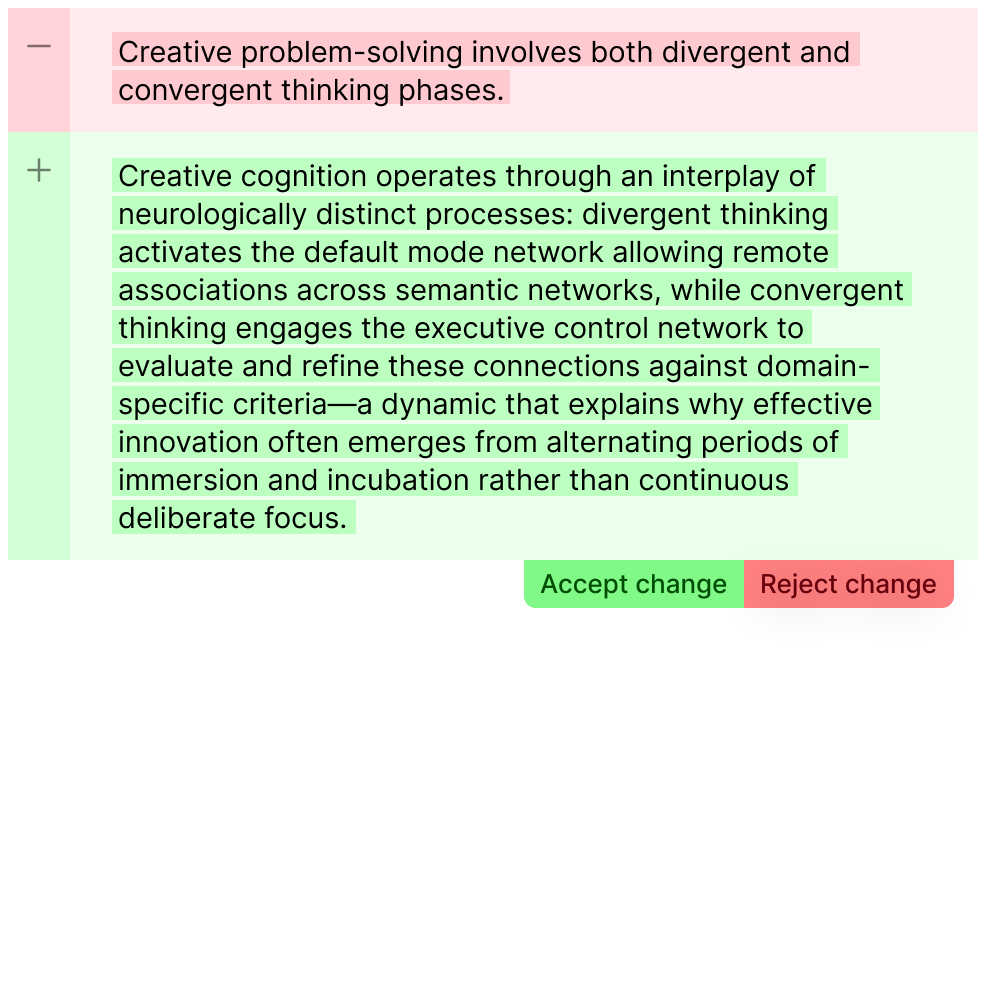
* Fabric Assistant will propose a set of changes, which will be visible on the document as a set of changes (diffs). These will show what will be removed (red), and what will be added (green).
* You can choose to `Accept` or `Reject` each change manually, or apply/reject all the changes in one go.
## About Fabric notes
* Fabric comes with a world-class text editor and document authoring tool.
* Designed for minimalism, speed, but with all the features you could want.
* Write in the same place that your research, ideas and files are.
***
## Editor features:
* Real-time multiplayer editing
* Link to any content in Fabric
* Embed images, files and other notes into a document
* Toggle lists
* Outlining tools
* Tables
* Code blocks, with syntax highlighting for over 40 languages
* Highlighting, commenting, @mentions
* AI document editing
* Publishing
* Text search
***
## How do I use it?
* Highlight any text to see the formatting toolbar (highlight, format text, change to a different block type e.g. code block, image, title etc.).
* Press `/` or click the `+` symbol to see the menu to add a new block.
* Grab the block to drag the current block or down.
* Click the block to see options to transform the current block into a different type.
***
## Link between your notes
* Tap `[[` to see options to reference other files or folders from your Fabric workspace.
* Referencing a file or folder creates a link to that entity.
***
## Publish your work
* Just click `Share` and turn on `Publishing` to make your content available to a wider audience.
* You can optionally choose to turn on `Search engine indexing`, and your content will be discoverable and indexed by Google and other search engines.
Learn more in the [Publishing feature page](/guide/features/publishing).
***
## Comment, mention and leave feedback
* Highlight any text and click the yellow highlight icon to create an annotation referencing that text highlight. You can optionally choose to add some text, creating a comment.
* Clicking the location icon on the annotation (in the comment panel) will auto-scroll the text editor to that location.
* You can also @mention a teammate or collaborator, and they'll receive a notification.
Learn more in the [Annotation feature page](/guide/features/annotations).
***
## AI writing assistant
* With a document open, you can ask your Fabric AI Assistant to modify the document for you, in any way that you can imagine. A writing companion.
* Fabric Assistant will propose a set of changes, which will be visible on the document as a set of changes (diffs). These will show what will be removed (red), and what will be added (green).
* You can choose to `Accept` or `Reject` each change manually, or apply/reject all the changes in one go.