> ## Documentation Index
> Fetch the complete documentation index at: https://fabric.so/llms.txt
> Use this file to discover all available pages before exploring further.
# Desktop
> Create, think or work with your Fabric digital mind, instantly on your computer.

 MacOS
Windows
Linux
***
## What can you do with the Fabric desktop app?
* AI meeting notes.
* Capture desktop screenshots.
* Sync files from your computer.
* Anything you can do in the Fabric web app.
***
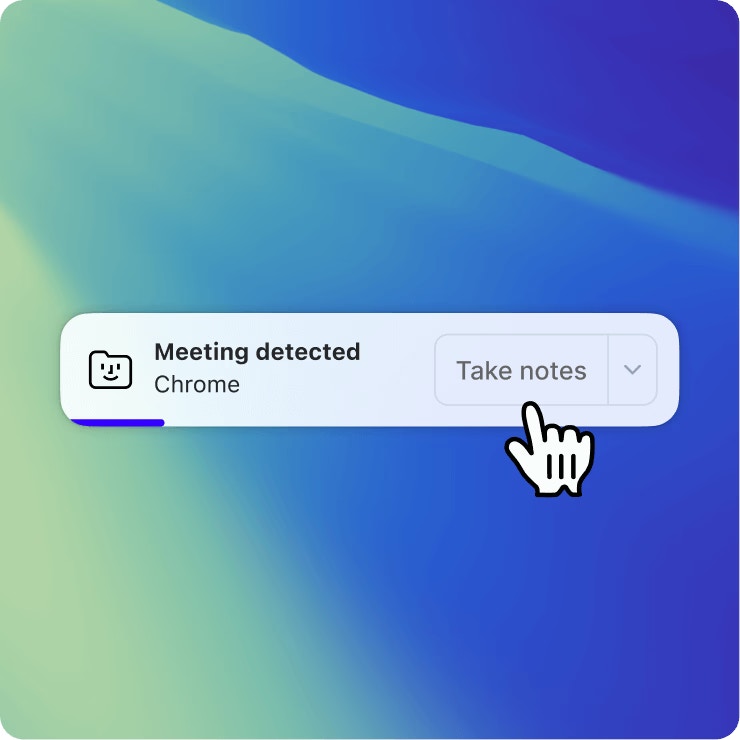
## Capture AI meeting notes with the desktop app
With built-in meeting detection. Fabric automatically detects that a meeting has begun and offers to begin transcribing it. You can also start meeting note capture at any time.
* In order to be able to capture the other participants in a video, you will need to make sure to enable 'System audio' permission.
* Learn more about the feature in the [meeting notepad page](/guide/features/meeting-notepad).
MacOS
Windows
Linux
***
## What can you do with the Fabric desktop app?
* AI meeting notes.
* Capture desktop screenshots.
* Sync files from your computer.
* Anything you can do in the Fabric web app.
***
## Capture AI meeting notes with the desktop app
With built-in meeting detection. Fabric automatically detects that a meeting has begun and offers to begin transcribing it. You can also start meeting note capture at any time.
* In order to be able to capture the other participants in a video, you will need to make sure to enable 'System audio' permission.
* Learn more about the feature in the [meeting notepad page](/guide/features/meeting-notepad).
 Important!\
Remember to get consent from any parties that you decide to use the AI meeting notetaker with.
***
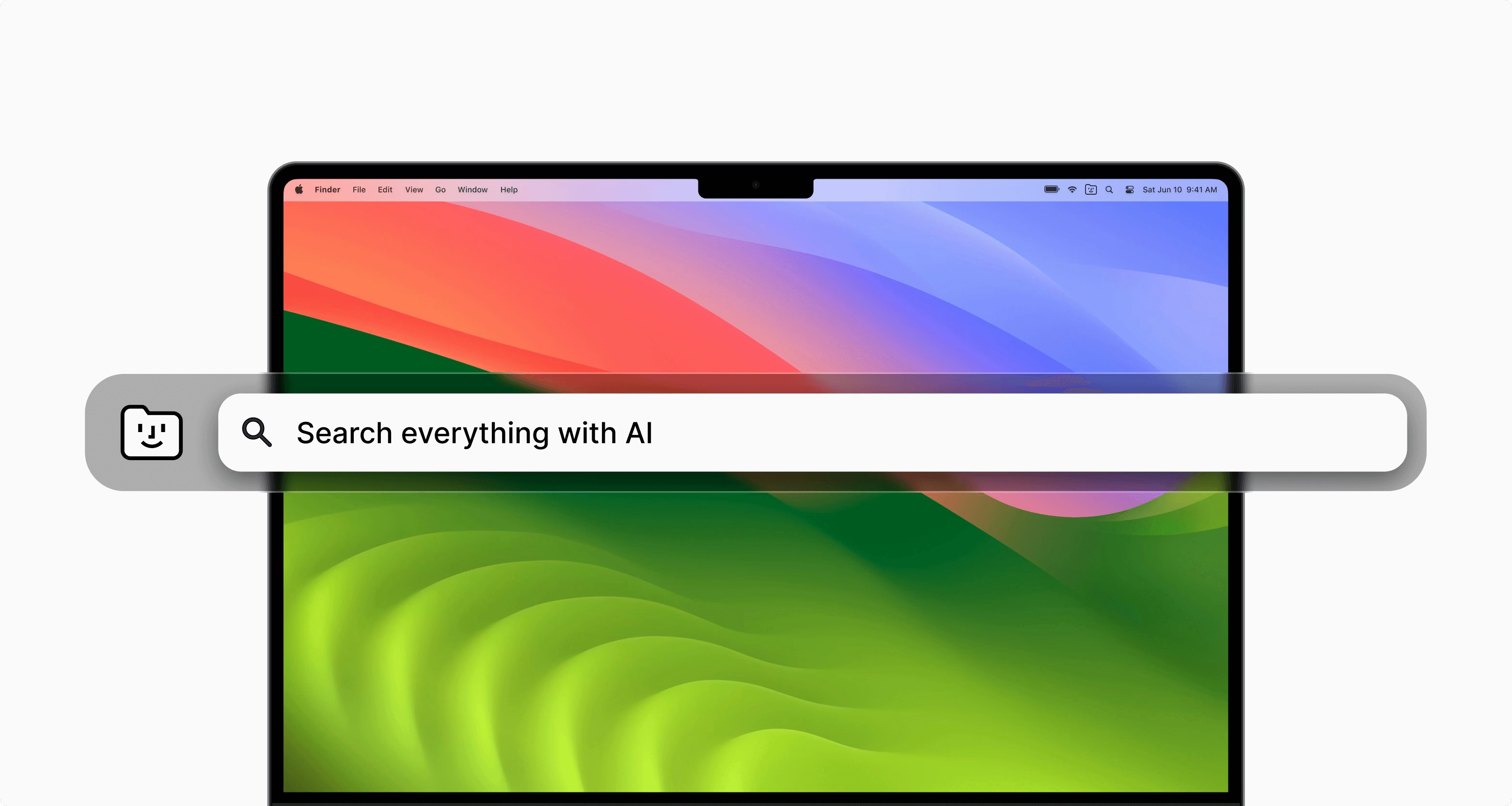
## Instant search from your desktop
**Fabric spotlight search**
Press `⌘+⌥+F` (or `Ctrl+alt+F` on Windows) at any point on your desktop to trigger Fabric spotlight search. Search across your Fabric and all connected apps from anywhere on your computer.
***
## Capture desktop screenshots to Fabric
A fast way to save a screenshot directly to your Fabric.
Important!\
Remember to get consent from any parties that you decide to use the AI meeting notetaker with.
***
## Instant search from your desktop
**Fabric spotlight search**
Press `⌘+⌥+F` (or `Ctrl+alt+F` on Windows) at any point on your desktop to trigger Fabric spotlight search. Search across your Fabric and all connected apps from anywhere on your computer.
***
## Capture desktop screenshots to Fabric
A fast way to save a screenshot directly to your Fabric.
 **Fabric desktop screenshot**
Press `⌘+⌥+R` (or `Ctrl+alt+R` on Windows) at any point on your desktop to trigger Fabric desktop screenshot. Simply drag to capture a region of your screen, and it will be saved to Fabric.
***
## Sync files from your computer
Fabric desktop app lets you automatically sync files to Fabric and vice versa, with a dedicated Fabric folder that magically stays in sync.
* Learn more about the feature in the [sync and backup page](/guide/features/sync-and-backup).
**Fabric desktop screenshot**
Press `⌘+⌥+R` (or `Ctrl+alt+R` on Windows) at any point on your desktop to trigger Fabric desktop screenshot. Simply drag to capture a region of your screen, and it will be saved to Fabric.
***
## Sync files from your computer
Fabric desktop app lets you automatically sync files to Fabric and vice versa, with a dedicated Fabric folder that magically stays in sync.
* Learn more about the feature in the [sync and backup page](/guide/features/sync-and-backup).
.avif?fit=max&auto=format&n=HJdPON2hF4r3S8BG&q=85&s=d3e19adf68fe914d98fe8920693a5216) Note: sync is only available on MacOS and Windows
***
## Move faster with Fabric already at your finger-tips
The Fabric desktop app puts key actions available in just a tap or shortcut, including:
* Making a voice/meeting note
* Making a screenshot
* Creating a note
* Saving a link
* Uploading a file
* Making a space
Note: sync is only available on MacOS and Windows
***
## Move faster with Fabric already at your finger-tips
The Fabric desktop app puts key actions available in just a tap or shortcut, including:
* Making a voice/meeting note
* Making a screenshot
* Creating a note
* Saving a link
* Uploading a file
* Making a space
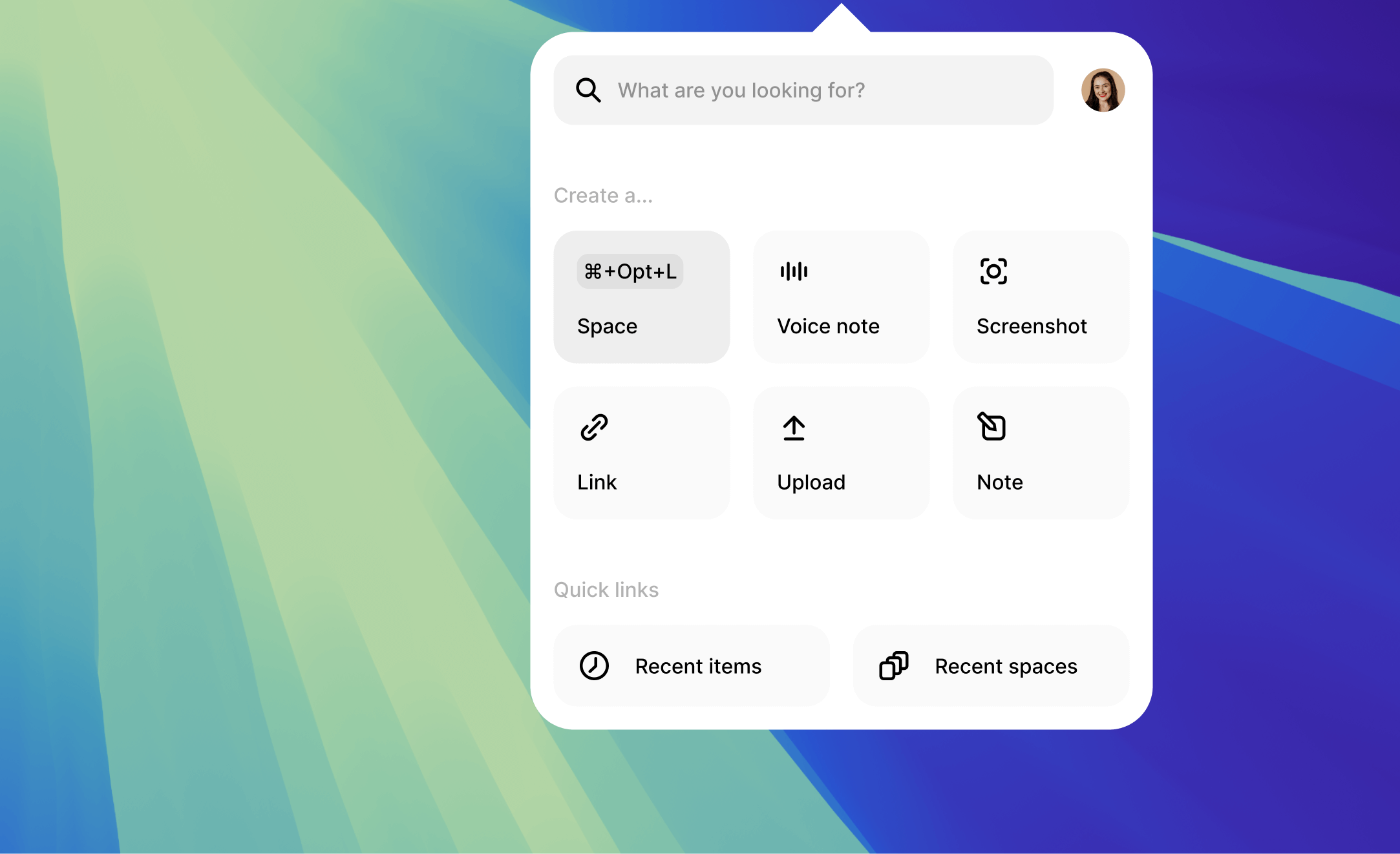 **Create a quick note (from desktop)**
Press `⌘+⌥+N` (or `Ctrl+alt+N` on Windows) at any point on your desktop to create a quick note.
**Or**
Just click "Note" in the taskbar menu.
**Create a voice/meeting note (from desktop)**
Press `⌘+⌥+V` (or `Ctrl+alt+V` on Windows) at any point on your desktop to start recording a voice/meeting note.
**Or**
Just click "Voice note" in the taskbar menu.
***
## Logging into the desktop app
* For the desktop app to successfully log in, it uses your browser for authentication, and you may be asked to log into Fabric in your browser to complete sign in.
* If you use a less common browser, it's possible that this process might be interrupted. If in doubt, the safest bet would be to use Chrome to complete this sign in step.
**Create a quick note (from desktop)**
Press `⌘+⌥+N` (or `Ctrl+alt+N` on Windows) at any point on your desktop to create a quick note.
**Or**
Just click "Note" in the taskbar menu.
**Create a voice/meeting note (from desktop)**
Press `⌘+⌥+V` (or `Ctrl+alt+V` on Windows) at any point on your desktop to start recording a voice/meeting note.
**Or**
Just click "Voice note" in the taskbar menu.
***
## Logging into the desktop app
* For the desktop app to successfully log in, it uses your browser for authentication, and you may be asked to log into Fabric in your browser to complete sign in.
* If you use a less common browser, it's possible that this process might be interrupted. If in doubt, the safest bet would be to use Chrome to complete this sign in step.